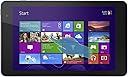
🚀 Compact power, full Windows freedom — your ultimate on-the-go productivity tablet!
The Dell Venue 8 Pro 5000 Series is a sleek 8-inch Windows 8.1 tablet powered by a 1.8 GHz quad-core Intel Atom processor, 2GB RAM, and 32GB eMMC storage expandable via MicroSD. Featuring a vibrant 1280x800 HD touchscreen, front and rear cameras, Bluetooth 4.0, and up to 8 hours of battery life, it delivers a full PC experience in a lightweight, portable form factor ideal for professionals seeking productivity and mobility.
| ASIN | B00FEE7B1I |
| Age Range Description | Adult |
| Aspect Ratio | 16:10 |
| Battery Average Life | 8 hours |
| Battery Capacity | 12166 milliamp_hours |
| Battery Cell Type | Lithium Ion |
| Brand | Dell |
| CPU Model Number | Atom Z3740D |
| CPU Model Speed Maximum | 1.8 GHz |
| Camera Description | Front, Rear |
| Cellular Technology | 2G |
| Color | Moon Silver |
| Compatible Devices | Keyboard, Mouse, Speaker, Headphones |
| Compatible Flash Memory Type | microSD |
| Configuration | Intel Atom Z3740D, 32 GB, 2 GB RAM, 8-inch, Windows 8.1 |
| Connectivity Technology | Wireless |
| Customer Reviews | 3.9 out of 5 stars 1,364 Reviews |
| Display Refresh Rate in Hertz | 60 |
| Display Resolution Maximum | 1280 x 800 pixels |
| Display Type | LED |
| Generation | 5th Generation |
| Graphics Coprocessor | 150 |
| Graphics Description | Integrated |
| Hard-Drive Size | 32 GB |
| Hardware Interface | Bluetooth, MicroSD, USB 2.0 |
| Headphones Jack | usb2.0 |
| Human-Interface Input | Touchscreen with Stylus Support |
| Included Components | No |
| Item Dimensions L x W x Thickness | 10"L x 1"W x 6"Th |
| Lithium-Battery Energy Content | 45 watt-hours |
| Manufacturer | Dell Computer |
| Memory Slots Available | 1 |
| Memory Storage Capacity | 32 GB |
| Mfr Part Number | BELL8-Pro81 |
| Model Name | Venue 8 Pro |
| Model Number | BELL8-Pro81 |
| Model Series | Venue 8 Pro |
| Model Year | 2013 |
| Native Resolution | 1280 x 800 pixels |
| Number of Items | 1 |
| Number of Packs | 1 |
| Number of Rear Facing Cameras | 1 |
| Operating System | Windows 8.1 |
| Operating System Family | Windows |
| Other Special Features of the Product | Portable |
| Photo Sensor Resolution | 5 mp |
| Processor Brand | Intel |
| Processor Description | Intel Atom |
| Processor Speed | 1.8 GHz |
| RAM Memory Installed | 2 GB |
| RAM Size | 2 GB |
| Rear Facing Camera Photo Sensor Resolution | 5 mp |
| Screen Size | 8 inches |
| Size | 8 Inch Display |
| Software Update Supported to Date | unknown |
| Speaker Description | stereo speakers |
| Specific Uses For Product | personal |
| Style Name | 32 GB SSD |
| Supported Audio Format | MP3 |
| Total Usb Ports | 1 |
| UPC | 884116139041 884116137399 |
| Unit Count | 1 Count |
| Video Capture Resolution | HD 720p |
| Video Processor | Intel |
| Warranty Description | 1 |
| Warranty Type | Limited |
| Wireless Compability | 802.11bgn |
| Wireless Technology | Bluetooth, Wi-Fi |
J**.
DELL VENUE 8 PRO, A GREAT PORTABLE TABLET COMPUTER WITH THE FUNCTIONALITY OF WINDOWS 8, IMPORTANT TIPS INCLUDED
I am gonna start off and say that the Dell Venue 8 Pro is probably the most portable and most functional tablet computer I have ever owned and at the price I got it, it is practically unbeatable spec wise. With the full windows 8.1 OS, my use for this is practically limitless and its portable enough I can hold it in its keyboard case in one hand with ease. Without a case or with a slim case the tablet is light and easy to grip the back is non slip and you don't have the feeling that its just going to slide out of your hands. I bought this to replace my over sized ASUS laptop which was just awkward to carry and required a large computer bag to transport and boy this puts it to shame in terms of portability and ease of use. First thing I do when I take the tablet out of the box is apply a screen protector (boy was that a pain...but that's another review), I was not about to trust the scratch resistance and strength of glass which for the price of the tablet is probably not as strong as its $500+ dollar counterparts. Then because its a windows computer, after setting up my user profile I started the first round of major updates, the second, and finally a few less important ones. Then I went into the my dell application and ran system check to verify everything was checking OK with windows, after all the tests passed I went to the dell update page to update device drivers. This is the part that most people don't seem to understand fully, this is not your average tablet, its not an android. You have to update it and maintenance windows constantly, that's the cost of having the convenience and functionality of windows (some people will disagree with me on that part). I installed the latest WiFi drivers, updated the dell software, and updated the bios to A08 (originally A04). The my dell application is very useful with its own checkup (cpu, ram, emmc, battery, etc), link to drivers, backup manger, and links to windows settings to help the user better set the look and feel that works best for them. Now for use, I recommend using IE11 (i know) as your primary web browser because it has the the windows 8 touch interface, it is the easiest to use on the touch screen unless you are going to be using a mouse or stylus more. The quad core atom processor inside provides more power than you would expect from a 200 dollar tablet, at 1.8 ghz. It is also a true quad core, not a dual core with multi threading. The 2 gb of ddr3 memory is enough for multitasking and windows 8 being much less demanding than win7 is plenty for office work and web browsing. Opening applications on this is quick and and there is enough free ram that can be used to open multiple applications simultaneously, even running the split screen I didn't experience any lag. I can have 10 tabs open in IE and quickly swap applications and it remains fluid. Now when it runs clocked at 1.8 ghz for an extended period of time you will notice one corner of the device start to get pretty warm (being fanless) but it is able to keep its temperature within a reasonable level. Gaming on this tablet will probably be limited to light flash games and low demand games off the app store or steam but I didn't get it for gaming. Now for a con, I'm sure everyone knows this and probably knows when ordering but when you receive the tablet, with the OS, updates, and office you are left with only 10-11 gigs of free space. Most (non app store) applications you install will need to be manually pointed to the micro SD for installation and storage. I bought a sandisk extreme plus micro SDHC with an 80 mb/sec read/write so that the tablet will be able to more quickly load applications. Link below. Another con is the overly erratic auto brightness adjustments, I had to disable that (I'll get a desktop widget or icon to quickly adjust the brightness manually). They could have picked a better location for the windows button too rather than at the top of the device but I'll get used to it. The touch screen at times can be touchy and a few times it has registered one touch as two. The battery has a decent amount of stamina, probably average for a tablet this size, while just browsing the web and general use of the tablet. Charging it on the other hand is very very slow, probably takes a few hours to go from 20% to 90%. I have noticed some battery drain because sometimes the audio driver prevents the tablet from going into standby, muting it fixes this, hopefully they have a patch soon. The dual a/b micro usb port too feels very fragile, I am terrified because the latches on the micro usb connectors are all WAY too tight. I am afraid I will accidentally break the port, pins or the little plastic piece holding the pins, even though its inconvenient, verify that you are connecting it properly and do not yank the cable out of the device. Also, there's only one port so you cant charge and use a usb peripheral unless you buy a special expensive adapter, link below. Also the port only supports usb OTG (on the go) cables. I highly recommend buying a case for this tablet, it does not boast being drop or shock proof, it may survive a few on its own but not many, also its less than 200 dollars. The tablet itself feels sturdy in your hand and its light weight design makes it comfortable to hold. For a case I bought the Finite Keyboard Case with the magnetic Bluetooth keyboard, opened up this tablet looks like a miniature laptop that's more difficult to use in the lap but doable and its up to 60% smaller than a full sized laptop. All in all, the Dell Venue 8 Pro is an all around fully functional Windows 8 tablet PC and at its low price their are few that can compete with its specs. This is directed at Amazon, I am slightly frustrated that I bought this when it went on sale for $230 only to discover that the day I receive it (2 days later) the price dropped to $199. UPDATE (8/2/2014): I have been using the tablet for about a week now, still getting used to the size of the UI and the tiny keyboard that came with the case. Currently trying to figure out a battery leak that occurs during standby, its not a hardware issue with the tablet I just hope dell releases a patch for it so I do end up doing all the work. I have not broken the USB port yet, thankfully, I figure as long as I'm careful and don't try to force it in the wrong way I shouldn't have anything to worry about. If you feel like you may have issues plugging it in properly, mark the side that faces the screen with whiteout so you see it when plugging it in. The micro USB port is rated for 10,000 disconnects and reconnects and I realized that my kindle fire has the same port (and I used to plug and unplug that like 3 times a day). The port is kind of tight still, I hope it loosens up with use. Pros: *8" Capacitive 10 point touch screen *Functionality of windows 8 *quad core intel atom processor w/ 1.8 ghz boost *Bluetooth 4.0 for multiple peripheral connectivity *lightweight *long lasting battery *front and back facing cameras *Microsoft Office Home and Student 2013 included Cons: (most of these can be ignored for the price) *Inconvenient windows button location *Still some bugs to work out *Fragile and tight micro usb port *charging speed *only 1280 x 800 res display *after the OS, office and updates only 10 gigs of storage space remain Device Specs: *Dell Venue 8 Pro *Dim - 8.5 x 5.1 x 0.35 inches (216 x 130 x 9 mm) *Windows 8.1 32 bit *Intel Atom quad core CPU w/ 1.8 ghz boost *2 GB of DDR3 RAM *32/64 GB of integrated eMMC storage *8 inch IPS HD 1280 x 800 res, 189 ppi LCD (LED lit) display; 10 point capacitive touch screen *Long lasting battery, 8-10 hours *0.87 lbs *wifi b/g/n dual band WiFi w/ Bluetooth 4.0 capability *micro usb a+b port (doubles as charging port) *volume up/down buttons *Micro SD expansion slot *built in speaker and microphone *5 mp rear camera/ 1.2 mp front facing camera *Accelerometer for orientation, Compass, and AGPS (WiFi assisted GPS) Useful Accessories: Fintie Blade X1 Dell Venue 8 Pro (Windows 8.1) Keyboard Case - Ultra Slim Shell Stand Cover with Magnetically Detachable Wireless Bluetooth Keyboard (Only Fit DELL Venue 8 Pro Windows 8.1 tablet) - Black SanDisk Extreme Plus 32GB MicroSDHC UHS-I Memory Card Speed Up To 80MB/s With Adapter, Frustration-Free Packaging- SDSDQX-032G-AFFP-A SanDisk Extreme Plus 64GB MicroSDXC UHS-I Memory Card Speed Up To 80MB/s With Adapter, Frustration-Free Packaging- SDSDQX-064G-AFFP-A EEEKit Office 3-in-1 Kit for Dell Venue 8 Inch Pro ASUS Transformer Book T100TA-C1-GR Windows 8.1 Tablet, Micro USB B 5Pin Male to USB A Female with Angle Adapter Host Mode OTG Cable + 3 Port USB Hub + 2.4G Wireless Mouse Black +Port: USB + Power at the same time for mobile devices (solution for the inability to charge and use the USB port at the same time)(I have not purchased this yet)
P**N
and web surfing but not intended for Architectural Design applications or heavy duty gamer fun. Simple with convenient connectio
Works well for my intentions to have a mobile device around the home and a tiny table to travel with to check mail, Facebook, and some web surfing. The 8 inch size works well sitting outside drinking a adult beverage on my deck and on a airplane where space is limited. The processor (1.83GHz Quad Core) and memory (2 GB) combo is speedy enough for light work with mail, Facebook, and web surfing but not intended for Architectural Design applications or heavy duty gamer fun. Simple with convenient connections with one micro USB2 (for trickle charging and data transfer), one headphone and microphone combo-jack and one micro SD memory card slot. Simple keeps the cost minimal. Note: you can't use a standard USB cable for file transfer, you need Micro USB to USB OTG Host Adapter which I bought on Amazon from StarTech. A few issues: one is the screen brightness seems to randomly go dim, then pop back to as if it has a faulty connection. Also note if you have human fingers (versus cat paws and pointed claws) the screen is tiny and not sized to touch each and every little control such as web buttons to exit pop-up ad's, back button on the web toolbar and other tiny controls. I'm thinking a stylus would be a good thing for touch control but also watch my wife zing around on her mini iPad without any issues. I'm hoping to not buy any accessories such as stylus, mouse, keyboard, etc... it's a tablet. Battery life is good with constant use and last me 8 plus hours. Watching movies takes more power and discharges faster but I usually am online with a movie and other activities for maximum 4 hours straight so practically this will last two days per charge for me. Four star reasons = Functionality with tiny controls such as web buttons to exit pop-up ad's, back button on the web toolbar and other tiny controls, plus the technical issue of screen brightness randomly changing.
$**N
Great little toy!
IMPORTANT: IF YOU WANT THE INCLUDED OFFICE 2013 SOFTWARE, MAKE SURE YOUR SELLER IS GIVING YOU THE PRODUCT KEY WITH YOUR USED/REFURBISHED PURCHASE. "PREINSTALLED" doesn't mean anything. Ask your seller. It seems that the majority of sellers on the web who carry the Venue 8 Pro will buy the tablet, take out the Office product key, and then resell the tablet (at a little under retail price) and the Office key SEPARATELY either to try to make more or because they took the key and activated Office for themselves. Think about it - you buy the tablet for $249, take out the Office key, resell the tablet for $200 (not informing the customer you've removed the key), and sell the Office key for $100... instant $50 profit from NOTHING! For whatever reason, to my dismay, it seems that this is "common practice" and something to be expected from merchants selling used Venue 8 Pros and similar products, whereas I see it as utterly immoral and misleading. The Amazon product description leads you to believe that the tablet has Office 2013 preinstalled and that upon receiving a used, reset tablet, you can just launch Word and start using it. You must know that Office 2013 is "preinstalled" on the tablet as an "INSTALL MICROSOFT OFFICE" app, which upon opening prompts the customer to enter a Office 2013 product key. Without the product key, "preinstalled" or not, the software is USELESS. This is not the Surface RT, which runs on an operating system with Office literally built in, this has full x86 Windows 8.1 and Office needs to be installed and activated just like it does on any other Windows machine. Now, to my review: Products like this are difficult to review because it is difficult to pinpoint their category. It is a $200 budget widescreen tablet, so it is a Nexus 7 competitor? Yet, it is also a full quad-core Windows machine running an x86 operating system. I still scratch my head at the thought: a full Windows machine for $200?!? It's hard to say what the Venue 8 pro is, and the onboard Windows 8.1 in my opinion doesn't help with its dual user interfaces, fuzzing the line between tablet and computer even further. But I do know one thing about this tablet: I love it. For $200, it's a geek toy and in a way should be treated as such, but it is so much more capable than a toy tablet. I admit - when I owned an iPad mini I told myself that it could do this and do that with my shiny little tablet, and always ended up just watching YouTube videos and reading email. But the Venue 8 Pro can actually go beyond that. When I have it on the go or around my house, yes, it immediately becomes a consumption device. Watching videos, viewing photos/basic editing, basically becoming an iPad mini or Nexus 7 but with fewer touch-friendly apps. But as soon as I dock it in with a keyboard and mouse, it's a computer and I am writing Word documents, reports, and running statistics software. Speaking of a keyboard and mouse, the "docking" factor is also the Venue 8 Pro's biggest weakness - while it is a fully capable quad-core Windows machine on the inside, one simply cannot make use of all its power without desktop accessories. The Windows on-screen keyboard is good, and for some reason I type better with it than I do with KitKat's stock keyboard, but typing anything long is just a massive waste of time no matter how fast you are with a touch keyboard. It supports Synaptics active pen input, and while that solves the problem of the lack of accurate pointing device, it doesn't address the lack of a keyboard as standard. That's one thing the Surface RT did right, for instance, as many compromises as that device had - Microsoft (eventually) bundled it with the keyboard case because it was an integral part of the Windows working experience. The moral of the story: if you get the Venue 8 Pro, get some USB accessories like a keyboard and mouse - you won't regret it. Using accessories with the Venue 8 Pro is a bit sketchy. It has one microUSB port that doubles as the charging port, so while USB OTG adapters allow you to plug in your USB peripherals, it cancels your device's ability to simultaneously charge. There are ways around this (Google to see what I mean) that feel hacky and not a fluid experience, involving multiple cables, fooling the tablet into thinking it's plugged into one thing when it's not using switches, etc. There are third party Kickstarter projects that aim to address this problem specifically for this tablet and others with similar issues, but if you're interested in making this tablet a true, low-power desktop replacement, make sure you do your research and know what you're doing with that one microUSB port. When you do figure it out, however, the tablet works great. I'm not even going to deduct a star because I really have no complaints in doing a tiny bit of hacking with the $165 price I paid. Note that the tablet DOES NOT come with a USB OTG adapter included - you'll have to get your own, but they're only about a dollar on Amazon. As for the hardware itself, I found the Venue 8 Pro to be the most physically attractive in the small-form-factor x86 Windows 8 tablet range. It has a very clean front panel, shiny metal buttons that actually feel like they're metal (not sure if they really are), and the back of the device, where so many other consumer electronics just stop caring about aesthetics, looks really good with its concentric, rubberized grooves. This gives you a great grip on the tablet, which is important as it is just a tad too heavy to be used with one hand for long periods of time. The display is absolutely lovely - 1280x800 doesn't sound like much but on an 8-inch screen with Windows ClearType font smoothing, it looks real good. and very crisp. I have had no gripes with pixel density, and while I often cringe when switching from my gorgeous iPad air's 2048x1536 to anything else, I don't find the Dell's display to be fuzzy or pixely at all. The colors also help - color saturation is wonderful, and viewing angles are amazing as expected from an IPS panel. It's just a great display, really good for watching videos. I still wouldn't edit photos on it just yet (~70% sRGB), but for consumption it has one of the better displays I have seen. I really wish that the tablet came with more onboard storage, but who can I blame but myself?! I bought the 32GB version and my only regret was not bumping it up to 64GB because upon a clean Windows reset, I had about 11GB of free space on the onboard storage. Upon installing Office and some other basic apps, I am down to about 4GB. This makes the microSD slot on the Venue 8 Pro absolutely priceless. I have installed games to it, stored most of my files on it now, and this almost completely solves the issue of low storage capacity (except for the fact that it takes a hack to install Windows Store Modern UI apps to external storage). If you're worried about storage, I strongly recommend getting the 64GB model. Battery life is amazing from this little Windows machine. For the amount I use it, it lasts a whole day, sometimes overnight without charging. Windows hibernates very well and it appears that the Bay Trail Atom CPU is very power-efficient. Speaking of the CPU, the back of the device can get really hot when doing something intensive like playing a game. Playing a racing game while holding the tablet can make you really feel the burn on your fingertips, and when running an actual game like Command and Conquer 3 or Half-Life 2 (games like this run surprisingly well at lower settings with playable frame rates!)? Yeah, it gets really hot. It feels like it wants a fan, but of course the design doesn't allow for it. I haven't noticed the CPU throttling at all, however, which is good as performance feels consistent. Apps open snappily for the most part and perform quite well. Way more than enough speed for something basic like Office or web browsing, you can try and push the limits by playing some games on it or running Photoshop! There ARE, however, times when I feel like Windows wants more RAM and can't get any. The onboard 2GB just isn't enough to multitask like you would on a desktop machine, but again, for maybe 4-5 apps open at once with a few browser tabs, you're fine. I've found this table GREAT for using Steam's in-home streaming feature: with my Xbox 360 controller, it effectively turns the tablet into a makeshift Nvidia Shield if you know what that is :) As was true of the iPad mini when it came out, Windows touchscreen apps scale beautifully to the smaller form factor. Even the desktop mode feels good, which was my largest concern considering how small buttons would get. However, with my massive pianist fingertips I could resize windows, manipulate text, and do just about anything I could with a mouse with ease. That's not even with a stylus. I won't talk about the stylus as I believe that should be part of a separate review for the stylus itself (especially because it doesn't come bundled but instead is a separate accessory) but it has mixed results. The one area of the touch experience that I find detracting from a great experience is screen rotation - The device is small enough that it is comfortable to use in portrait mode, even as a widescreen tablet (I usually prefer Apple's 4:3 aspect ratio style for portrait/landscape switching), but Windows makes it REALLY SLOW to switch orientations. Tilt your device, and it actually takes upward of 1 or 2 seconds for the device to recognize its new orientation and adapt its contents to your liking. This is terrible if you're someone like me who carries their tablet everywhere, on planes, into bed, and if you accidentally tilt it too far in one direction, you think your tablet freezes for a few seconds as it struggles to catch up with the new orientation. I've found this true of Windows tablets in general, not necessarily for the Venue 8 Pro alone. I often find myself just disabling screen rotation when I'm on the go so I don't have to deal with this. The speaker is super loud on the Venue 8 Pro, making it great for Skype calling and casual video watching, but not great for long-term film watching or gaming. It is on the tinny side for speakers, only has one channel, and distorts at high volumes. This cannot compete with Amazon's Kindle Fire lineup when it comes to audio quality, nor even with Apple's iPad lineup. With headphones, the onboard DAC is just okay. It's a tad better than average for tablets in its size class (lightyears better than some of the terrible, cheap Android tablets I've played with), but not something I would use for long-term music listening. Listening to iTunes while doing some work? Sure, why not, it's good enough. The cameras are nothing special. Both are terrible for taking still shots or even videos, but more than decent for making video calls. The fact that it has both a front-facing and back-facing camera for the price is just an added bonus. As you can tell, I really enjoy the tablet, and having only paid $165 for a refurbished one here on Amazon, I really can't complain. Microsoft Office 2013 Home and Student alone costs some $90-140, so if you look at it that way, you're paying some $30-40 for a fully functioning quad-core Windows 8 tablet. I say if you want one, go get one, because there's so little room for regret here. Even if a few features are lacking, it'll likely make up for it for you because it's just so feature-packed.
K**H
Pay extra for 64 gb version!
1st off, if you're going to get this tablet, pay the little bit extra to upgrade to the 64 GB version!! It says it has 22.5gb but with Windows and what not, out of the box you have 8-10gb free space. I've downloaded some apps that's about 5gb and with Microsoft Office, it originally said I had around 2gb of space left, but all of a sudden today, I'm down to 360mb. It happens often, that something just eats up a lot of space and you're left with almost nothing. The tablet itself, I've had for about a month. It is a little laggy, especially when I open firefox, it freezes for 3-5 seconds before I can do anything. I've had the speaker have this little static noise, and stops working for like 5 mins. It has happened to me twice. App notification is off and on (for messaging, mail & facebook). Sometimes I get a notification, sometimes I don't and sometimes I get a notification 10 mins later. Not the problem much with the tablet, but the Windows Store is pretty empty with not so many apps. If there is a version of that app, it's a knockoff with ads. I just ordered the stylus recently so I will comment on that. Losing space randomly frustrates me as it doesn't tell me what eats up the space. The general overview just says apps take this amount, and pictures and videos eats up this amount. Doesn't tell me what eats up the rest. You can download onto the desktop a checker telling you exactly what takes up what space, but I'm not a computer junkie so I'm not sure what is exactly safe to delete and what is needed to be kept... Edit: I received the stylus, however, it's only been 1 day, here's my take on it: It starts making marks on the screen before the stylus actually touches the screen. Sometimes you have to click on things multiple times for it to register the click. I also got a 64gb microSD to add to this. It sucks that you cannot install apps onto the microSD as Windows 8.1 doesn't allow you to do that :/ Edit: 10/15/2014 This tablet is outright horrible! So far after receiving it, I have had nothing but problems with it! After allowing Windows to update itself, I cannot open some of my apps and the sound starts working. I'm extremely frustrated with this product!
A**R
Nearly replaced his laptop.
I bought this tablet for a good friend who had previously told me they believe they have little use for a tablet. However, his laptop was beginning to fail and i knew this would be a great affordable backup and unlike any ordinary tablet, i knew he would like it more than he believed he would. I was completely right. The more he uses this tablet the more delighted he is, and now uses it more than any other device including his laptop (which is still running OK for now, he just PREFERS the tablet!). This tablet can do anything his laptop can do - and more, with the additional freedom of light weight and long battery life. I bought the 32GB version as i got it at a great price. While space is clearly quite limited, this has not yet been a problem as most things can be stored on cloud online storage utilities such as Microsoft's Onedrive or Dropbox. Anything he would rather not store there can be stored on an external hard drive device or flash drive or if he wants files for quick access, there is still room to store on the device or micro SD. This may not be quite so convenient if you need quick access to large files, in which case i might suggest paying a little more for the 64GB version, or simply buying more online storage space if that might be more affordable. While some complain about the size of the device being a drawback, you are aware that you are buying an 8-inch tablet, right? If you think size will be an issue for you, then get a different tablet. My friend has had no issues so far with the screen size, he finds it quite comfortable for browsing, playing, reading etc.. The fact that this tablet is quite small is a benefit in many ways as it makes it more lightweight and practical for using on-the-go or when multitasking. I personally own an 11" Surface Pro, and for a comparison on size, i find that while the size of the Surface is practical and comfortable to use when sitting around, i rarely ever take it out on the move; it is little more appropriate to use standing up than a laptop would be. Additionally the surface is quite heavy - too heavy for me to hold in one hand comfortably unlike the Dell Venue 8 Pro - which is very easy to hold with one hand and operate with the other - as a tablet should be. So try not to consider the size as a limitation but rather as an alternative feature. It may not suit some, but it is not necessarily a limitation to others, and can even be a benefit. The only real disappointment experienced was the quality of the Microsoft App store. Of course this tablet has full windows 8.1 functionality, and i would not have bought it if it weren't for that. Still, it would be nice to have some more exciting apps available on the store, it does not compete well with android or iOS stores. However, this is a criticism of Microsoft devices in general, and is not at all a big deal for the Dell Venue pro 8 as it is not windows RT. This is barely even a criticism for an 8.1 device. One of the best things about this tablet is the battery life which offers freedom away from wires and chargers, so you can go where you like and still work, chat or play freely for long periods. The battery tends to last about 5 hours with constant use surfing and Skyping and taking pictures, providing the screen brightness is as low as it can be. That is a good long while. Finally, I bought this tablet 'used' on Amazon; it was in perfect condition but it did not come with a case etc. My friend bought himself a "MoKo" Ultra Slim Lightweight Smart-shell Stand Case for Dell Venue 8 PRO. He would recommend this case as it was very affordable, fits perfectly and offers great protection to the tablet. He intends to get a stylus in the future (mainly for drawing doodles/diagrams etc.) but thus far i cannot comment on stylus function. Touch-response is very good however.
A**R
Dell Venue 8 Pro 32GB: Mostly all-positive reviews? Not so fast!
I have been spending time with my new Venue 8 Pro for the past 4 days. Please understand that, prior to this, I've experienced the Acer Iconia W510 (10.1” screen, 32GB) and the Lenovo IdeaTab Lynx (11.6” screen, 64GB), both of which were originally released as Windows 8 Tablets, first generation. I own them both and recently updated them to Windows 8.1. So, much of what I have to say is relative to my experience with those two devices. I also own multiple Android tablets of both 7” (including Nexus 7, both 2012 and 2013 eds.), and 10.1” screen sizes, and Ipad 3rd Gen, Ipod touch, etc. I'm an enthusiast of new touch screen technology devices and computing in general. My first disappointment happened while I was filling text spaces during Windows 8.1 set-up on the Dell Venue 8 Pro: the slightest or firmest screen tap resulted in multiple character outputs. So, if I wanted an “r”, I'd get mostly “rr” or “rrr”, etc. I figured it would be simply something that would sort itself out after whatever Windows and Dell updates were pending. We're all familiar with the first set of drivers usually requiring updating, even right after initial release. Unfortunately, the issue not only persisted even after doing the required updates, but became worse, despite my fiddling with “Keyboard” and “Pen and Touch” settings under “Control Panel.” None of those settings is clearly meant to address screen sensitivity per se, so it was like walking in the dark to see where one gets, if anywhere. Unfortunately, I wasn't getting anywhere useful. Much to my surprise, I allowed myself to contact Dell Support via Chat functionality on “My Dell” app (via Metro screen; not exactly reachable via windows desktop mode). The tech person I got had a positive-outcome mentality, which I found very helpful. He accessed the tablet remotely via an app download whose link he sent me during the chat. As he worked on the issue, I noticed he was fiddling with the same settings I had tried to adjust before. Since none of it bore any fruit, he suggested he could “refresh” (as opposed to “reset”) the device, to which I agreed. This sort of resets the tablet's settings but preserves most, if not all, of one's stored files, such as downloads, etc; some installs are removed, including any programs and updates that change any original important settings. When the tablet rebooted, it was evident that the hypersensitive screen problem was still there. The tech had said he would call me later but I had to run some errands, so he did call but I wasn't home to receive the message, which I have yet to retrieve. My experience with OS-related issues has usually been that one is dependent on updates and drivers issued by Microsoft and the manufacturer. Any additional adjustment is usually up to me to try. Just as I was almost realizing that I was seemingly stuck with a defective unit, I read again all of Amazon's reviews—they've been accumulating at a fast pace over the past days. One or two reviewers mention something akin to what I've been describing regarding repetitive output but it doesn't seem they've necessarily experienced it to the same degree I have. The other thing I noticed was that right after having finished doing the Windows and Dell updates, the storage space was about 12.4gb, consistent with other people's observations. After the refresh, however, space had decreased to about 8.4gb. My Acer Iconia W510 has shown this kind of behavior before and, after the tablet does some periodic “Maintenance” on its own (the msg flag shows a clock icon) it regains space, so that it's been known to go from about 9gb to 12.4 gb. So I compared both devices storage-wise. It turns out that, while Acer opted to omit a recovery partition out of consideration for how limited a space one is left with after all is said and done on a 32gb Windows tablet, Dell did not omit the recovery partition, which by my estimate is occupying some 4-5gb of space. I did run “Maintenance” manually on the Dell—ie chose for the device to do it at a time I wanted it to happen and, almost predictably, space went up to about 9.6. At times it shows 9.5 or 9.4gb, so apparently, space is left in some kind of dynamic state. By the way, this is after having installed the bare minimum Windows programs I can't be without, things like an antimalware utility, an explorer-like program, Sumatra PDF reader, and VLC media player, and also having updated all apps on the Metro side which Windows indicated were in need of updating, about 28 in total. I did that in about 3-4 app groups. Some apps took less space than their out-of-box versions, some took a tiny bit more. The total of about 9.5gb after updates and installs is apparently the best one can do under the circumstances. If you add to that the 4-5gb presumably occupied by recovery, it comes out to about 13gb, which is consistent with what my Acer tablet shows, which has essentially the same apps and programs. Considering that the touch input capability came in “half-cooked” shape out of the box, it was probably a good idea for Dell to leave the recovery partition in place. I assume that's what actually makes a refresh possible, or even a reset, should one opt for that more drastic measure. Now, the really most interesting observation after the “Maintenance” is that the touch input problem decreased to about 25% of what it used to be. I can now tap-write several a few sentences without it happening, or it happening only once every so often. So much so, that now I can see myself keeping the tablet under the basic assumption that the remainder of the issue may be addressed in time via Dell and/or Microsoft OS or driver updates. How this happened, I'm not sure. Maybe there's a “virtual device” taking care of some aspect somewhere, or something was done to the drivers during the maintenance. It does leave one with the question as to whether the problem is as semi-resolved as it appears or could rear its uglier head later on. Now I can see that some people, if their tablet is showing this behavior, might tend to disregard it, or not fully notice it initially. None of my two other Windows 8.1 tablets has shown any touch input problems at all. So, fiddling with any controls that could be related has not been ever necessary with them. I'll echo most of the laudatory comments regarding the display quality of the screen, regarding sharpness, colors, etc. It's not iPad-quality, but I didn't expect it to be. Just a quick glance at the resolution spec of this device shows that it's unrealistic to expect the iPad's supra-HD display quality. I love the fact that the screen aspect is close to 16:9 (16:10, I think). It looks like a larger 7” Android tablet. The black bars above and below the image with some movies are not as large as on the iPad, which is 4:3 (like an old TV). The native images, such as desktop, web browsers, etc. are the size of the screen, as they should be. My understanding is that Windows 8 was designed initially for screen sizes 10” and above. Anything under that was uncharted territory, until now. So, it's understandable that implementing visuals and screen-related features, such as touch, in this smaller form-factor is a new step for Windows tablet technology. I think we'll need to be a bit tolerant with tap issues, which include not just occasional repetitive outputs but also occasional difficulty in hitting the right web links, getting the wrong icons to open, etc. This tablet needs to be purchased with a “work in progress” mentality. If this will be one's only tablet, or one's first tablet, it may not be the best choice. For enthusiasts, who often are used to waiting for things to be optimized, it's fine. Even if you're an enthusiast, remember to hit “Maintenance” before expecting any tap hypersensitivity to decrease enough, if that's one of your initial problems with the device. As for the score, I think I'll leave it at 3-stars for now. Ideally, a tablet's screen should not have any significant touch problems out of the box. In my mind, that solidly results in losing two full stars. I was inclined to get it down to two-stars, but since I'm opting to keep it, I'll leave it at a realistic 3-stars, perhaps considering that it's more like two-and-a-half, 50% of the max. If this were my only Windows tablet I can see that my level of disappointment might get it closer to one star. Hopefully the problem will be addressed by Dell or Microsoft later on. For now, I regard it mostly as a content-consumption device, to read, look at web pages, read e-mail (not necessarily write long e-mail!), watch video clips, and such. As for text, anything beyond tap-typing URLs, writing brief notes or e-mails, or making one-word or one-short-sentence entries is somewhat out of the question. Hopefully, I'll be able to change this remark for the better once, and if, this limit is resolved. By the way, the best way I've found to work one's way around storage space limitations in a 32gb Windows tablet is to make as full use of the microSD card slot as possible. Ideally, get a 64gb microSD card, or at least 32gb. Go to Portable Apps dotcom (write it as it should for it to work on a browser) and download the free software for the platform. Install it in the microSD card (preferably, make a new folder for it and label it something like “PORTABLE APPS-DO NOT REMOVE.” Open this initial program and, from it, choose what Portable Apps you want. These are mostly open-source Windows programs, like Libre Office, portable Firefox, portable Opera browser (there's portable Chrome but I prefer to have it in main drive as my default browser), and several dozens of additional programs, some fairly well known, others not as much. Wait for the platform to download and install them. They will be automatically installed to the location of the platform itself, the microSD card in this case. Modify your psychology to regard the “C:” drive as “for OS, Metro Apps, and essential programs only,” and use the microSD card for any installs which have portable versions available. This has a pro and a con: It helps to retain some privacy as apps don't attach any configuration or essential files to Windows; they're completely installed in the external storage. But you're limited to what the PortableApps platform has available. Also, if you ever switch microSD card, you have to reinstall the portable apps, or do without them while using a different card. Personally, I always leave the same card stuck in there and always have access to my portable apps. There are other portable apps that are available but aren't part of the PortableApps group (google to find). These simply have to be downloaded individually to the microSD card and tapped individually to be used.
G**R
This Wonderful tablet is also the perfect companion PC
Its a 8" tablet weighing less than the iPad mini but runs Full Windows 8.1, how cool is that? This is what I have been wanting for a long long time - a tablet that lets me consume content, and when I don't have access to a regular PC, it will let me do some actual work! And full Windows means - you can run any windows application, get multiple user profiles and the whole shebang! Ordered from Amazon for $252.65 on Nov. 3rd and got it Nov 5th - Amazon Prime rocks! Comes in a slim plastic body that actually feels and looks quite good, has the spiraled textured back which provides an excellent grip. 1 micro-SD card slot and 1 micro-USB port. No Sim Card slot. A mono but adequate speaker - if you want stereo you will have to plug in a headphone/external/Bluetooth speaker. In the box you will get a charger and a USB/micro-USB Cable - that's it. Cold booting to Windows takes about 10 seconds. updated the BIOS - took about 8 minutes. Ran Windows updates - about 200MB. Installed some apps - Evernote touch, dropbox, kindle... watched YouTube, Hulu, amazon prime and Netflix, read some PDFs - I have to say the metro PDF viewer really shines in tablet form factor. Next Morning, I decided it was a keeper and ordered an OTG Cable, Micro-SD Card and the Stylus from Dell. I haven't run any intensive applications on it, but the maximum I was able to push it was up to 89% memory use. I was little concerned about the 2GB memory and the eMMC storage. But after I ran passmark PC performance test, it appeared this thing was performing on par with the low end 65W TDP CPU s - like a core 2 duo or a mobile core i3 even, and this is only a 5W CPU, I have to say, hats off to Intel! Way better than the Eee PCs - with which we mostly associate the Atom CPU s. you can see a screenshot of my passmark results. Crystal Diskmark revealed pretty impressive disk performance - I only hope that it will last past the warranty period. Next I wanted to see how it performed compared to other "tablets" on the market. So, I ran geekbench 3, and here are the results and some comparison - Geekbench 3 Results - Device Single Core Multi Core Dell Venue Pro 8 789 2525 Asus Nexus 7 622 1891 iPad mini 262 498 iPad 4th Gen 784 1427 Galaxy Note 10.1 392 1073 Amazon Kindle Fire 337 614 Acer Iconia W3 437 1106 Needless to say, This little beauty performs exceptionally well. Before I knew it, my OTG cable and micro-SD cards were here. The micro-USB port is used to charge the battery and also works as a USB host with a USB OTG cable. It does not function as mtp. Downside to this dual purpose port is that you can't charge and connect to peripherals simultaneously. could not successfully power a regular portable USB drive or slim DVD drive, But it detects an USB keyboard just fine and you can get to the BIOS. One other thing i tried was a generic USB Ethernet adapter and it worked! You can boot from a Retail Windows 8.1 USB Stick, but that's as far as you will be able to go, Dell hasn't made available the touch screen drivers. After getting the cable, I moved the recovery partition to a thumb drive (you need a minimum of 8GB), deleted the recovery partition, and ran disk cleanup - at this point I had a total of 17.5GB out of 27.9GB free - plus the 32GB on the micro-SD card, I think i will survive. pretty much anything video, audio, pdf etc all opens and runs just fine from the sd card. A lot of people have complained about the automatic display settings, but it was a bit too bright for my taste when i turned the auto brightness off. Ran the Windows battery report, since i have used it for a few days now. It appears it got almost 10 hours of full use, you can see the screenshot of that report. Dell really screwed up the shipping for my stylus, delayed it twice. I am not an artist, nor have ever used any active stylus extensively. This appeared to work reasonably well for me in One Note and Windows Journal, with some occasional slipping of the pen or a bit of a too much sensitivity. This is one thing I am not too thrilled about in general about the touch screen of this device - its just a bit too much touchy at times, a single key touch will get 2,3 letters and sometime the zooming in/out and scrolling tends to slip too. I don't know what kind of glass they are using, its not listed in Corning Gorilla Glass site. After almost a week of using this tablet, I am beginning to wonder why Microsoft had to take almost a Billion dollars write off on the Surface RT? Windows 8 is actually a pretty good OS, the Metro UI is much better than anything out there - IMHO, including IOS (I own a 1st & 3rd gen iPad) and of Course Android. I think they should have kept the RT limited to just Metro, and for the Desktop part, they could have put in an option to selectively turn on the touch friendly Metro UI only if the PC detected that it has a touch screen - or something like that. That way people would be much less confused. The 2 UIs and the sudden loss of the familiar start button has been a pretty big shock for the users. Maybe they didn't foresee Intel being able to make a 5W x86 processor that's almost as good as a desktop CPU? if Intel continues like this, maybe in a few years our smart phones will be x86 instead of ARM? that will be fun! Update 12/23/2013 Like a lot of other folks, at the beginning I thought why on earth would Dell put the Windows button like that on the side in the Venue Pro 8? Well after using the Venue 11 Pro, I think I like the placement of the Windows button much better on the Venue Pro 8. The capacitive Windows button interferes too much specially if you are trying to use the Pen in landscape mode.
D**N
I do not recommend the Dell Venue 8 Pro (V8P)
I do not recommend the Dell Venue 8 Pro (V8P). I’ve owned mine for about 6 months. I bought it to replace my iPad. I use Windows PCs exclusively at work. I have a Windows laptop for travel and a Windows desktop at home and a Windows 8 phone. I was hoping the V8P would be an acceptable compromise between my iPad and my laptop, especially when travelling, and unify me into a single ecosystem. Unfortunately it failed. Here is my experience and opinions: HARDWARE Touch. The touch has a problem. It often thinks that that I am double clicking when I touch the screen. This causes things like websites to suddenly get large or get small when I am simply trying to scroll, icons execute, keys double enter (a real pain when entering passwords), etc. I took the screen protector off as research suggested and reset the touch settings. These helped a bit, but the problem is still frequent. Text. Selecting text is difficult. In comparison it is easy on the iPad. Luckily the keyboard has arrow keys. Disk space. My C: drive shows 23 Gigabytes in size. Only 7 Gig of it is free for me to use. So I have put a 64 Gig MicroSD card to augment the space. The card is slow. The V8P does not support fast MicroUSB cards. USB card. The MicroUSB card disappears every time I reboot. To see it again, I have to take the card out, and then reinsert it. I will see it again until the next time I reboot. This problem is very common with the V8P. Performance. The V8P is underpowered. It seems fast most of the time. It boots quickly, applications start quickly. But I often find myself waiting for a response. There is no spinning cursor to tell me that it is working, it just doesn’t do anything. Then multiple things happen at once. Black. Sometimes the V8P does not awaken from sleep. The screen just stays black. I have to hold the power button down for 11 seconds or so to kill the V8P. Then wait a few seconds. Then press the power for a few seconds to power it back up. Camera. The camera really is very poor. The shutter is slow, the pictures are grainy and the color is poor. In contrast, my iPad took gorgeous pictures! My cell phone three phones ago took better pictures. My old Kodak Instamatic 110 took better pictures in 1974. Battery. Mine lasts about six hours. Less if I am typing or browsing. Even less if I am watching videos. It charges only from the wall wart; it does not charge when plugged into a USB port on a PC. Connections. Only one micro USB connector. Does not connect to most external displays without special equipment. If charging, I can’t connect to external USB drives without special equipment. Special equipment. A tiny fraction compared to what is available for the iPad and Android tablets. WINDOWS Metro. All I use the Metro desktop for is to launch applications. It is a lot like having the icons on my desktop. Apps. Mail, Calendar and Reader are the only Metro apps I use. Compared to iPad or Android, there are almost no Windows 8 Metro apps. It is so disappointing. The apps that do exist are stunted versions of the same apps that are great on the iPad or Android. Better to use the websites instead. Even the Microsoft Metro apps are limited functionality compared to their website or their desktop apps. Consider just traveling somewhere. There are several hundred apps on the iPad that schedule flights, book hotels, provide directions, reminders, etc. On the V8P, only a handful of major companies have metro apps which are so limited in functionality, it is better to use their websites. The iPad really spoiled me, all the great apps that were available. There are more apps for my Windows 8 phone than for the V8P. Mail. The Metro Mail app mimics the mail app on the iPad. It works okay. Music. Like the iPad, the V8P allows music to be playing when the screen is turned off. Unfortunately, the only app that I have that supports this is Xbox Music. No Pandora app means I have to use the browser. Music played through the browser stops when the V8P screen is turned off. At least Spotify has a desktop app, but desktop music apps also stop playing when the V8P screen is turned off. I have to keep the screen on in order to play music. Outside of Xbox Music, I don’t know how to turn off the screen (to save battery life) and still listen to music. Browser. The Metro version of IE 11 works well. It is probably my more favorite browsers for browsing. A lot of websites didn’t support the new IE 11 at first, but this is getting better. But it is missing some key features. Like history – you are unable to see the pages you visited yesterday for example, and you cannot delete history. The metro version doesn’t run any plugins, like Ad Block for example. Accessing favorites requires scrolling to the right for days. Sometimes it remembers the home page, most often it doesn’t. You can put favorites as tiles on the Metro home, but I have hundreds of favorites in dozens of groups. It is terrible clutter on the Metro home. There is a second, additionally IE 11 that runs on the desktop, but it takes almost 30 seconds to open on the underpowered V8P. Like other desktop apps, IE 11 is almost too small to use (i.e., menus full of links) and some websites don’t respond to touch (i.e., Google) – you have to use a mouse. Windows desktop. I use many applications that run in “normal” Windows, that is the desktop. While the V8P runs desktop applications, the desktop is so small it is all but unusable. It is a normal Windows desktop shrunk down to about 1/4th the size. I can use Remote Desktop to access another Windows PC, but the resultant desktop is so tiny I almost can’t work in it. I don’t know how make it bigger either. I cannot pinch to zoom. Little tiny buttons, little tiny menus which are hard to use even with a stylus. If I need to enter data, the on screen keyboard takes up the entire bottom half of the screen – I can only see the top two inches of the desktop. MS Office. I work a lot with Word and Excel. The V8P runs Work and Excel as desktop applications. The buttons on ribbons are so small they are almost unusable. Shortly after I sold my iPad, MS announced Office on the iPad. Bummer. OneDrive. A big feature of Windows 8 is OneDrive, which syncs your files between all your computers. It works pretty well. Unfortunately, sometimes it creates duplicates of a file. So I have the same file two, three, …. multiple times. I don’t know why this happens. I have to figure out what is different between each file and manually consolidate the changes. Updates. As I write this, there is no Windows 8.1 update for the V8P yet. If there is, I don’t know how to get it. BOTTOM LINE I do not recommend the V8P. The hardware is underpowered and problematic. The Windows desktop is too small to be usable. There are very few Metro apps. When my friends ask my opinion on which tablet to buy, I recommend the iPad, especially if there is an Apple store nearby. I strongly recommend against the Windows 8 tablets, especially the V8P. If you really want or need a Windows tablet, look into the Surface instead. I am ultimately unsatisfied with my V8P and plan on replacing it within the next couple of months.
Trustpilot
2 months ago
2 weeks ago