Buy anything from 5,000+ international stores. One checkout price. No surprise fees. Join 2M+ shoppers on Desertcart.
Desertcart purchases this item on your behalf and handles shipping, customs, and support to Ecuador.
🎨 Unlock your creative edge with precision and portability.
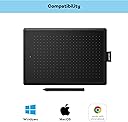
The Wacom Creative Pen Tablet Medium is a sleek, reliable graphics tablet featuring a generous 8.5x5.3" active area and 2048 levels of pen pressure sensitivity. Its battery-free stylus and USB plug-and-play connectivity make it an ideal tool for professional digital artists and remote workers alike, compatible with both Windows and Mac systems. Combining portability with precision, it’s a trusted workhorse for creative pros seeking simplicity without compromise.


| ASIN | B07HFGCP63 |
| Active Surface Area | 29.16 cm² |
| Best Sellers Rank | 5,433 in Computers & Accessories ( See Top 100 in Computers & Accessories ) 13 in Graphic Tablets |
| Box Contents | Digital Pen, USB Cable |
| Brand Name | Wacom |
| Colour | black / red |
| Compatible Devices | Laptop (Chromebook) |
| Customer Reviews | 4.6 4.6 out of 5 stars (6,132) |
| Display Type | LCD |
| EU Spare Part Availability Duration | 5 Years |
| Global Trade Identification Number | 04949268621076 |
| Item Dimensions L x W | 27.7L x 18.9W centimetres |
| Item Type Name | Wacom Creative Pen Tablet Medium |
| Item Weight | 15.52 Ounces |
| Manufacturer | WACOM |
| Manufacturer Part Number | CTL-672-N |
| Model Name | CTL-672-N |
| Model Number | CTL-672-N |
| Native Resolution | 1920x1080 |
| Network Connectivity Technology | USB |
| Operating System | Windows 11 |
| Pressure Sensitivity | 2048 Levels |
| Product Features | distance interactive learning |
| Product Warranty | 1 year Manufacturer warranty |
| Screen Size | 75 |
| Specific Uses For Product | Business |
| Target Audience | [SO] |
| Unit Count | 1.0 count |
E**W
Great tablet for the money
I bought this around 2 and a half years ago as I just wanted a simple and reliable tablet. I'm a graphic designer and illustrator and use this regularly in my work. After having various issues with other brands I wanted a simple tablet without all the bells and whistles - personally I find keyboard shortcuts easier to use so never end up using hotkeys on tablets etc. This model allowed me to maximize the drawing area while still keeping the tablet small and portable - it slides straight into my bag and I pretty much never notice it. To me this model is like a modern version of the bamboo line from the 2000s-2010s - its simple and just gets the job done. The pen is a classic Wacom pen and doesn't require charging like some other brands' pens which is super helpful. The tablet is accurate and responsive and pen pressure sensitivity works flawlessly in every software I've tried - including photoshop, illustrator, and blender. I use this tablet on both Mac and Windows and have never had any issues with the drivers or any other settings - just downloaded the Wacom software and it worked perfectly first try without any issues. Overall I'd recommend this tablet if you want a simple workhorse tablet without all the bells and whistles, with a low price and great portability to boot.
D**R
Great hardware, but the driver needs fixing
The hardware is excellent: I can write and draw on it almost as well as I can on paper as the precision is superb, but it has the huge advantage of being able to delete each line and repeat it as many times as necessary until it's just right, so it's much more efficient. I actually wanted a device with a screen, and I'd still like to have that as a stand-alone device, but when working with the computer it isn't necessary as you can see where the pen tip is while it's in the air over the tablet, though it's a little harder to be sure which direction you need to move it in for each line to take it exactly where you need it to go because of alignment issues, though this can be fixed by rotating the tablet a little and redoing the lines that went wrong. That's where my biggest issue is with the product though, becuase when I'm sitting back with the computer (a laptop) just out of comfortable reach, I want to be able to have an undo function tied to a button on the pen instead of having to use ctrl-z on the keyboard. You can set the pen up to give you that, but it doesn't work properly due to a badly designed driver. If I set the higher button to it, it still insists on triggering the original function as well (a colour selection wheel when using Krita) which I don't want [edit: it doesn't do that if you move the pen off the drawing area, so that's a practical workaround, though it's irritating having to do that for every undo], while if I set it to the lower button, which is where I'd prefer it to be, the drawing area moves around the screen in an irritating way whenever it's pressed. It's bonkers. Maybe that doesn't happen with other apps, but it shouldn't be doing that at all. Please fix the driver, because that undo function would multiply the efficiency of using the device. Edit:- The nib was wearing away surprisingly fast, and it was clearly also eroding the tablet surface a little as it was leaving visible lines on it when pressed hard, so I did an experiment. I put a blob of UV resin glue on the end of the nib which had two effects: (1) it made the contacting part inordinately more robust, and (2) it widened the point of contact, making it still less prone to wear. Next, I cut a rectangle of card from a breakfast cereal packet (after testing the pen on various surfaces - this one felt smoother on the glossy side than paper or the non-glossy side of the card), then I put that over the tablet to protect it from the pen. The result is a much improved feel to the drawing, no damage to the tablet, and the elimination of the need to buy lots of replacement nibs. The UV resin blob shows no sign of wear at all after using it for longer than I originally used the nib without it, and it all works fine with the card showing little wear due to the roundness of the resin blob, but when it does wear out it'll be no problem replacing it. A plastic sheet is even smoother, so that might be better, and I might also try making a rectangle of non-UV resin to put on the tablet, but I'll certainly never go back to using the nibs as they come or to doing anything that erodes the tablet surface as there's no advantage whatsoever in doing either of those things.
S**M
Confidently decent!
Purchased as a beginner. Works well enough once I'd set it up with the compainion software to bind it to only work on one of my (multi-monitor) displays. Only complaint with the actual product is it does indeed scratch very very easily. I am not heavy handed and it was already marked all over after the first day or two. A few months in though and this hasn't notably impacted functionality. Otherwise it is: Light, comfortable size + weight, comfortable pen size + weight ( I have average-large hand size with thin fingers). Drawing surface texture is decent. Simple to setup and go. As for how good it is as a beginner? I actually wish I had the money to throw at one that's also a display. It really takes some getting used to, having to not look directly at what you're drawing but rather a separate screen. It also feels really counter intuituve that it's not touchscreen, so I can't instinctively pinch and zoom and rotate with my hands. But none of those are actual issues with the product (it does what is advertised very well at an affordable price), more like buyers advice from one newbie to any others that are serious enough ( or bored enough) to be dropping money on digital art supplies.
R**M
QUÉ DEBEMOS SABER SOBRE LA TABLETA GRÁFICA ONE BY WACOM One by Wacom es una tableta básica y minimalista. Es el modelo de Wacom específicamente pensado para principiantes o para personas que no se dedican profesionalmente a la ilustración. Esto no quiere decir que no puedas hacer dibujos muy avanzados con ella. La diferencia es que no está equipada como otras tabletas con características útiles para pasar muchas horas dibujando cada día, ni para detectar todas las posibles sutilezas de los trazos con el lápiz. Si es tu primera tableta gráfica y no estás seguro de si te vas a sentir cómodo con el dibujo digital, empezar con una opción económica, como ésta, es una buena idea. Durante años Wacom ha sido la marca principal y referente en este sector. Aunque esto no sea un factor determinante, es algo a valorar, por toda su experiencia desarrollando estos dispositivos y teniendo que satisfacer las necesidades de sus clientes. Además, esta tableta es una de las más vendidas, lo cual es una ventaja porque cuenta con muchas opiniones para ayudarte a decidir, y de cara a encontrar soporte en internet ante cualquier problema que te puedas encontrar, como por ejemplo problemas de compatibilidad con programas. Por todos estos motivos, la Wacom One by Wacom será la primera recomendación de nuestro chatbot Revie dentro de las tabletas sin pantalla, de tamaño mediano y con funcionalidades básicas, es decir, tabletas económicas. QUÉ INCLUYE LA TABLETA ONE BY WACOM One by Wacom viene equipada con lo necesario: El lápiz, que no necesita ser recargado. Tres recambios para la punta del lápiz, junto con una pequeña herramienta para colocarlas y extraerlas. El cable micro USB con el que lo conectaremos en el ordenador (uno de los típicos para móviles). Una brevísima guía con algunas explicaciones que necesitamos saber. Los recambios de punta son necesarios porque del continuo roce con la superficie de la tableta irá desgastándose y afilándose, pudiendo dañarla. Además, la tableta gráfica tiene un pequeño agarre de tela donde podemos colocar el lápiz mientras no lo usemos. ¿QUÉ FUNCIONALIDADES UN POCO MÁS AVANZADAS PODRÍA ECHAR DE MENOS ALGUIEN CON EXPERIENCIA? El estándar actual de niveles de detección de presión ronda los 8192, mientras que el lápiz de nuestra tableta tiene 2048. Esto quiere decir que podría ser más sensible a la fuerza que aplicas sobre la tableta. En la mayoría de casos esta diferencia es inapreciable y se suele considerar que 2048 es más que suficiente. No detecta el grado de inclinación en los trazos, lo cual se utiliza para que se asemeje más al dibujo en papel y para tener más variables que manejar dibujando. En general las tabletas gráficas básicas no incluyen esta funcionalidad. No tiene botones. Los programas de edición de imagen cuentan con atajos de teclado para facilitar y agilizar el proceso: deshacer, hacer zoom, cambiar de herramienta… Las tabletas con botones permiten asignarle estos atajos para trabajar de forma más eficiente con dos manos. CÓMO INSTALAR ONE BY WACOM Si leemos la mini-guía veremos el enlace al que tenemos que acceder para descargar el software de esta tableta: wacom.com/start/one. Nosotros recomendamos hacer esto primero, y no conectar la tableta hasta que reiniciemos el computador tras completar la instalación. En nuestro caso hemos tenido algún problema por no realizar los pasos en ese orden. También mencionar que con Photoshop funcionó en el acto, mientras que con el software libre GIMP tuvimos problemas para que reconociera la tableta. Para los que nunca hayáis utilizado una tableta gráfica, la tableta funciona como un ratón cuando el lápiz está cerca de la tableta, y cuando entras en contacto es como hacer clic. La importancia de que la tableta se detecte correctamente radica en que los programas de edición de imagen reciban la información de la fuerza del trazo. Desde el software que nos facilitan, seleccionando nuestro producto y los ajustes del lápiz, podemos configurar lo que necesitemos. Lo más importante es asignarle a los botones del lápiz las acciones que queramos: ya sea un clic de ratón, un comando de teclado como control z, etc. También, dentro de la pestaña de “Proyección”, podemos elegir sobre qué pantalla actuará la tableta en el caso de tener más de un monitor, además de elegir si vamos a utilizar la tableta en vertical u horizontal. En mi caso, el ordenador lo tengo a la derecha por lo que me interesa más hacer clic en “horizontal invertido”. Para los más nuevos, recordar que la zona de puntos es la superficie realmente efectiva, que se va a corresponder con el monitor. Cada punto de la esquina encaja con las esquinas del monitor. Fuera de este área no se va a detectar el lápiz. Es importante mencionar que utilizando conexiones de USB 2.0 no se siente ninguna latencia o retraso entre que presionamos con el lápiz hasta que aparece el trazo dibujado. OPINIÓN FINAL ONE BY WACOM One by Wacom, como puedes comprobar en nuestro chatbot, es nuestra recomendación principal si buscas algo básico y económico, especialmente si no necesitas que tenga pantalla ni que sea de los modelos más grandes. El software que te facilitan en Wacom es muy fácil de usar y te permite configurar tu tableta según tus necesidades. Cumple perfectamente con las funciones que esperas de una tableta gráfica a muy buen precio y sin complicaciones.
M**I
Miglior rapporto qualità prezzo per chi è alle prime armi. Facile il setup e il primo utilizzo, nonostante non abbia lo schermo ho trovato molto semplice abituarmi e orientarmi.
C**.
J’ai acheté cette tablette graphique Wacom pour l’utiliser avec mon MacBook Pro, et tout fonctionne parfaitement. La configuration est simple et rapide : le branchement en USB suffit, et la tablette est reconnue immédiatement. Aucun souci de compatibilité avec macOS, que ce soit sur Krita, Photoshop ou d'autres logiciels. La réactivité est très bonne, le stylet est précis, et la sensibilité à la pression fonctionne bien. J’utilise la taille medium, qui offre une bonne surface de travail sans prendre trop de place sur le bureau. Pour du dessin numérique ou de la prise de notes, c’est vraiment pratique. Le produit est léger, facile à transporter, et le fait qu’il soit filaire ne me gêne pas du tout. C’est une excellente tablette pour débuter ou pour une utilisation régulière, sans se ruiner. Franchement, à ce prix, je ne vois pas mieux en termes de qualité et de simplicité.
N**L
Bon rapport qualité/prix. A recommander.
D**S
It's much bigger than the ctl-472 I had previously haven't tested it but I mainly play osu and im a drag player so I need the extra space for changing the play area every 6 months until I run out of trablet. I attached a picture of the ctl-472 (It's the same tablet just small) Get yourself a plastic sticker/cover so you don't scratch the surface and replace the stylus nibs before they get sharp.
Trustpilot
3 weeks ago
3 weeks ago